
Many users confuse their Windows computer PIN with their Microsoft 365 (M365) password, which often leads to unnecessary support requests, lost productivity and login issues. Understanding the difference and knowing how to reset each helps staff stay secure, confident and effective.
Computer PIN
A computer PIN is the code you enter on the Windows sign‑in screen when you start your computer.
It is:
- Specific to that device only
- Stored locally on the computer
- Part of Windows Hello security
- Quicker and safer than typing a full password
Your PIN works only on that device. Even if someone learns your PIN, they cannot sign in to your data or access your Microsoft 365 account on another device.
Microsoft 365 Password
Your Microsoft 365 password is used to access Microsoft applications such as Outlook and Teams.
This password:
- Works across all connected devices
- Grants access to business data stored in Microsoft 365
- Must be kept secure and updated regularly
- Is also the password used on your Windows sign‑in screen if your device is connected to your M365 account
Your M365 password protects your entire digital workspace. If compromised (without being protected by MFA), it can expose emails, files, chats, and other business data.
For M365‑Connected Devices
If your computer is connected to your Microsoft 365 account, your Windows login password is the same as your Microsoft 365 password, while your PIN remains unique to the device.
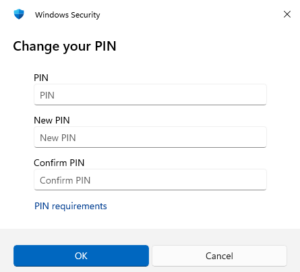
How to Reset Your Windows Computer PIN
Option 1: From the Sign‑In Screen
If you see “I forgot my PIN”:
- Select the option.
- Verify your Microsoft account.
- Set a new PIN.
Option 2: From Windows Settings
If the option does not appear:
- Sign in using your password.
- Open Settings → Accounts → Sign‑in options.
- Under PIN (Windows Hello), choose I forgot my PIN or Remove.
How to Reset Your Microsoft 365 Password
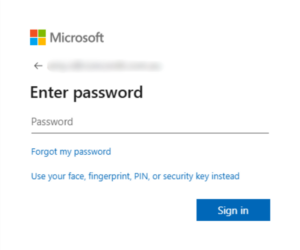
- Go to https://login.microsoftonline.com
- Select Forgot my password
- Verify your identity using your chosen method
- Set a new password
Your updated password will take effect across Outlook, Teams, OneDrive, and other Microsoft 365 applications.
Staff Resetting Their Passwords
Every employee should know how to reset their own credentials because:
- Users may be locked out for longer while waiting for assistance
- Due to impersonation risks, MSPs and IT teams can only reset passwords after verifying the request with an authorised person. They cannot act on unverified emails or messages, and this verification step introduces delays.
- Password reset requests can slow down IT response times for more urgent issues
Teaching staff to manage their own PINs and passwords improves security, reduces delays, and strengthens overall cyber resilience.
Training Staff to Understand the Difference and How to Reset Their Own Passwords
- Use screenshots showing the Windows sign‑in screen vs. Microsoft 365 login pages.
- Share a simple rule: PIN = unlock the device. Password = access Microsoft 365.
- Demonstrate both the login difference and how to reset a PIN or password during onboarding.
- Provide a short cheat sheet summarising when to use each login method and how to reset both.
- Share this blog with your employees so they can clearly understand the difference and how to handle their own resets.
A clear understanding of the difference between a Windows PIN and a Microsoft 365 password reduces downtime, strengthens security, and prevents unnecessary IT support requests. Empowering staff with this knowledge helps your organisation operate more smoothly.